Video Editor AI TV Clips: Cut Live Segments into Social-Ready Clips
Broadcast teams move fast, but social moves faster. A segment can air once on TV, then immediately spark a second life on TikTok, Reels, Shorts, and X—if you can publish clean clips quickly enough. The friction is familiar: live recordings are long, the best moments are scattered, and every platform wants a slightly different cut. From an AI review perspective, Video Editor AI is most compelling when you treat it as a “segmenting assistant” for broadcast-to-social workflows rather than a full replacement for an editor.
What makes broadcast footage harder than creator footage
A lot of AI editing tools are trained on talking-head creators. Broadcast content introduces additional complexity:
| Factor | Why it complicates clipping | What to do |
| Multiple speakers | Harder attribution and pacing | Define clip type and context |
| Low tolerance for caption errors | Names/places/numbers must be right | Add caption verification gate |
| Tighter brand rules | Graphics and marks must stay consistent | Use a consistent packaging spec |
| Breaking changes | Corrections arrive after cutting | Keep version notes and re-export path |
That’s why the goal is not “hands-free editing.” The goal is a faster first pass that gets your team to a publishable clip sooner.
Where Video Editor AI helps in TV clip workflows
Finding usable moments without scrubbing everything
When you have a 25-minute segment but only need three 20–40 second clips, the hardest part is often discovery. Video Editor AI can help surface candidate moments, so a producer or editor starts with a shortlist instead of a full-length watch-through.
Creating multiple versions from one segment
A live segment can produce multiple social assets:
- Quick quote (15–25s) — soundbites and reactions
- Context → point (20–40s) — commentary that needs one setup line
- Exchange clip (20–35s) — two-speaker back-and-forth
- Short explainer with captions (30–45s) — concept clarity in feed
Video Editor AI supports generating alternate cuts, which is useful when you need different durations for different placements.
Captions as a draft, not a final product
Captioning is mandatory for social distribution, but broadcast names and terminology can break automatic transcription. My recommendation is to use Video Editor AI to draft captions, then set a clear review step:
- confirm spelling of names and locations
- check numbers and dates
- ensure captions match tone and intent
- verify that any on-screen graphics don’t clash with captions
A broadcast-to-social pipeline that stays realistic
Step 0: Agree on what “social-ready” means for your brand
Before tools, align on standards. In my reviews, broadcast teams run into avoidable rework because “social-ready” is vague. Define a few non-negotiables:
- required show mark behavior (logo, bug, lower-third policy)
- tone rules (no misleading cutaways, no misquotes)
- caption style (readable, consistent, and proofread)
- the minimum context needed before a quote
Once the standard is clear, Video Editor AI becomes more useful because you can evaluate outputs against a consistent bar.
Step 1: Define “clip types” for your show
Your team will move faster if clip targets are standardized. For example:
| Clip type | Length | Structure |
| Quote | 15–25 seconds | One key line + minimal ID/context |
| Explainer | 30–45 seconds | Context → point → takeaway |
| Exchange | 20–35 seconds | Two-speaker back-and-forth |
Once types are defined, Video Editor AI can be used to generate drafts that fit those windows.
Step 2: Publish queue with human gating
For newsroom-adjacent or compliance-sensitive content, I advise a simple gate:
- draft generated (AI-assisted)
- editorial check (accuracy and clarity)
- legal/compliance check (if required)
- publish
This keeps speed while avoiding the reputational cost of a sloppy clip.
Step 3: Build correction-friendly habits
Live news and live entertainment both change quickly. If a correction is issued, your workflow should allow a fast re-export. Video Editor AI can help regenerate a clean cut without rebuilding from scratch, as long as you keep source organization and version notes tight.
What not to expect
Video Editor AI will not understand every nuance of your show format, and it won’t know when a line is legally risky or contextually misleading. It also cannot decide whether a clip is fair without the surrounding context. Treat it as an acceleration tool for first drafts, then rely on your producers to keep meaning intact.
A quick QC checklist for live-segment clips
When teams ask me how to use AI safely, I recommend a short checklist that matches the realities of live content:
- names, locations, and numbers are correct
- captions do not cover lower thirds or key graphics
- the quote still means the same thing in a shorter cut
- the opening makes sense without a long intro
- the export matches the intended platform and duration
This is where broadcast teams protect trust while still publishing at social speed.
Conclusion
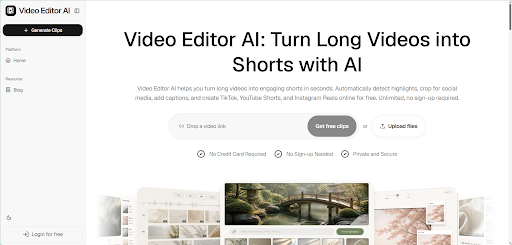
Video Editor AI (https://video-editor.ai/) can help broadcast teams cut live segments into social-ready clips by speeding up moment discovery, producing alternate cutdowns, and drafting captions for review. The best results come when your team defines clip types, keeps a clear approval gate, and uses the tool to reduce repetitive assembly work—not to skip editorial responsibility.
Turn live segments into social cuts with Video Editor AI today: https://video-editor.ai/